Duo Identity Verification
Last updated: 2026-11-12
You may need to verify your identity with Duo when you contact your help desk or during Duo enrollment. Duo identity verification uses Persona, a trusted identity verification service. Persona encrypts and securely stores your data, which is only used by Duo for identity verification purposes.
Before You Start
You will need:
- A government-issued photo ID, such as a driver's license, passport, or national ID card.
- A device with a camera, such as a phone, tablet, or computer with a webcam.
If you do not have a government-issued ID, contact your organization's IT help desk to discuss alternate verification methods.
Verify Your Identity with a Web Browser
Your Duo administrator or help desk will give you an access code to start the verification process. The access code expires after five minutes.
-
Open https://verify.duo.com in a web browser on your computer or mobile device.
-
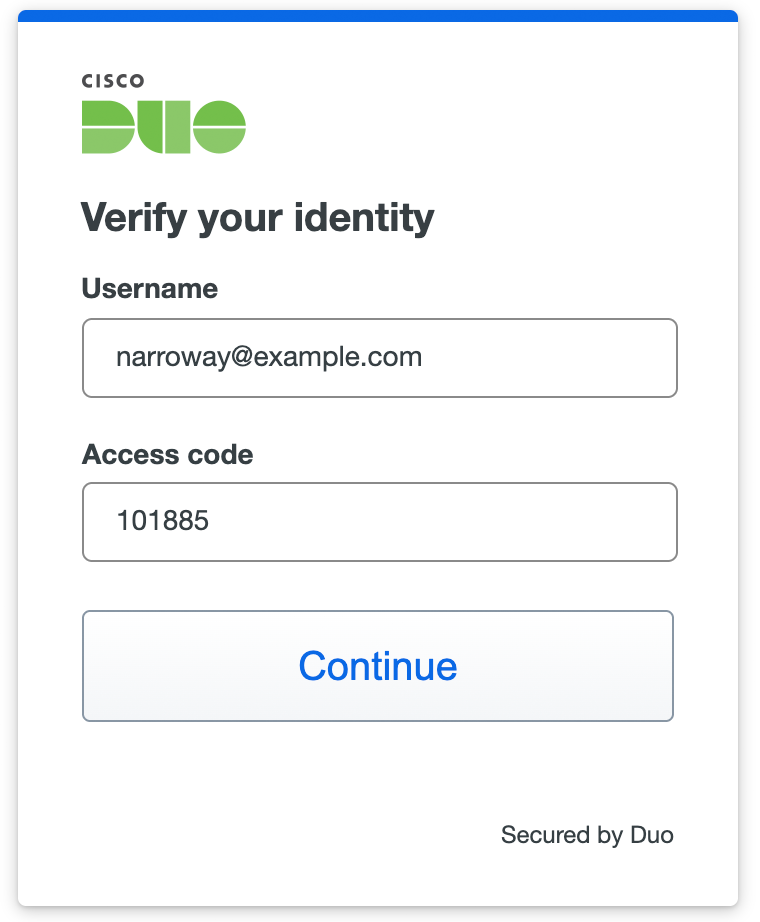
Enter your Duo user name and the access code, then click Continue.
-
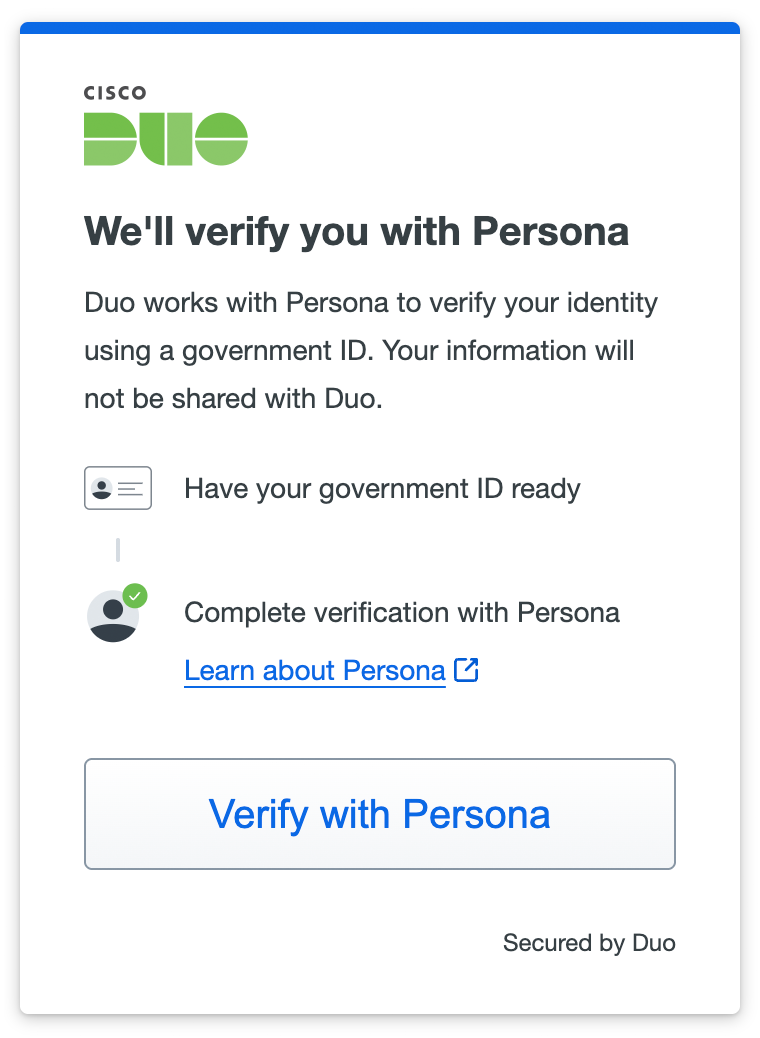
Click Verify with Persona.
-
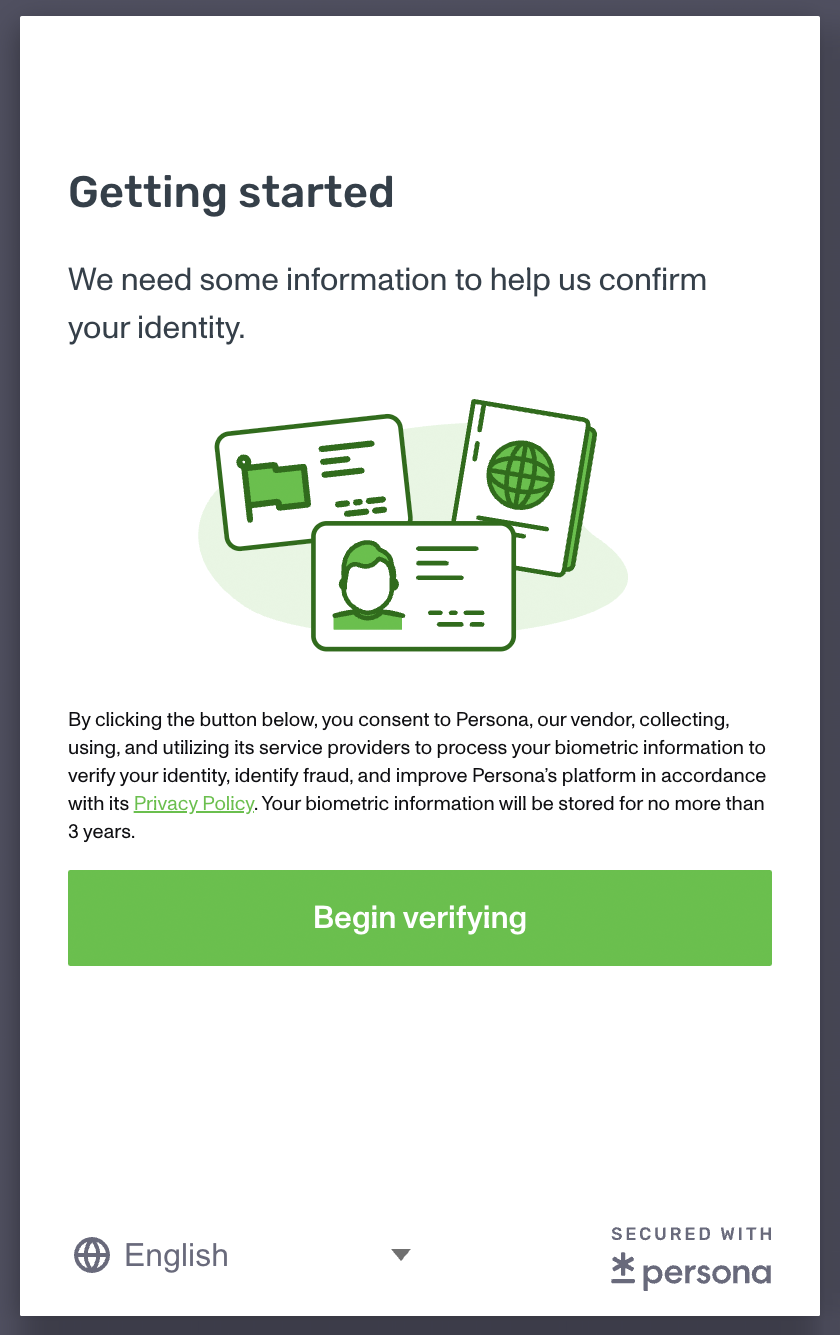
The Persona site opens in your browser. Click Begin verifying to start.
-
Follow the prompts to scan your government-issued ID.
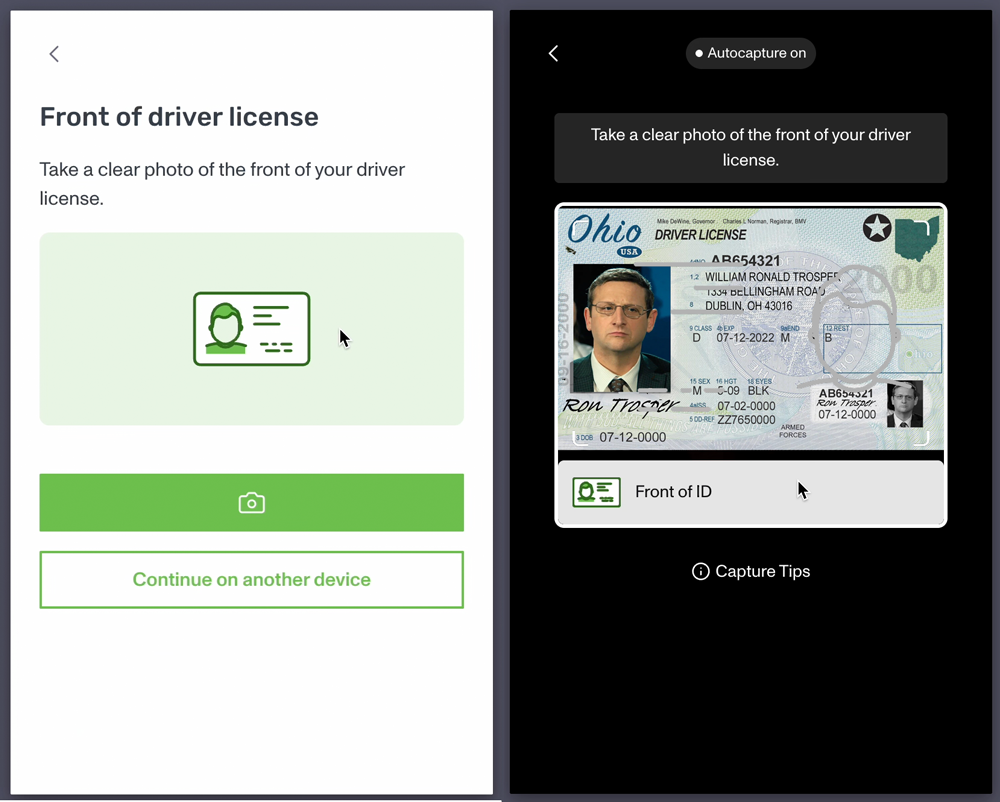
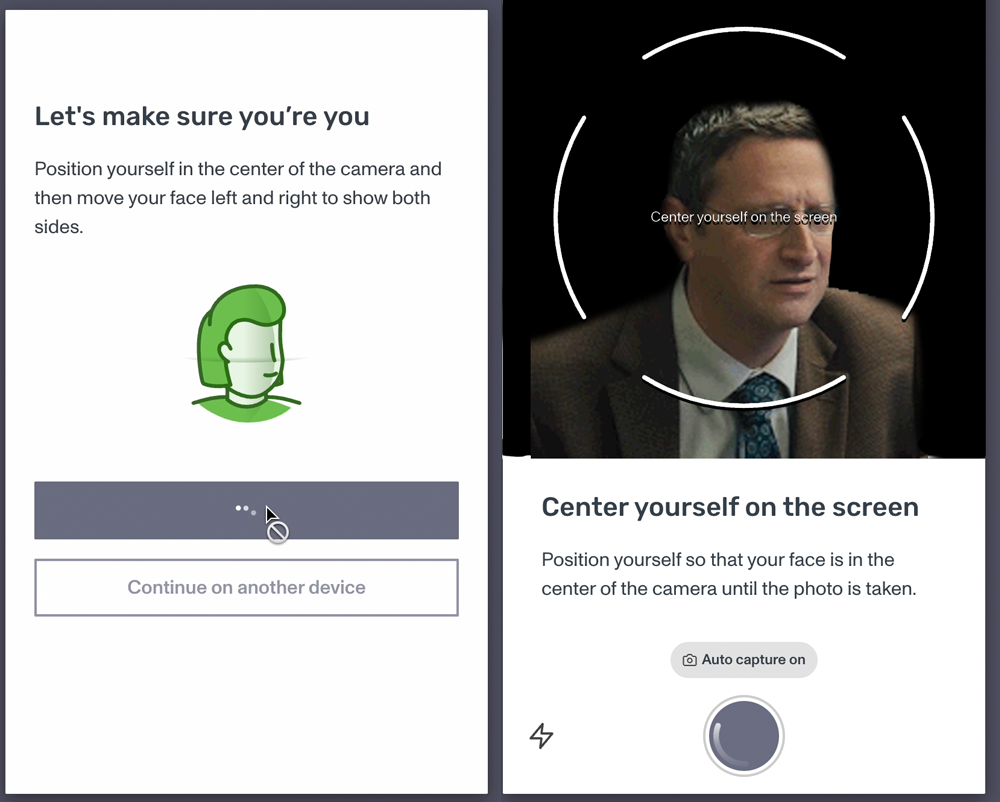
If the device you are using does not have a camera, click Continue on another device at the Persona site. Scan the QR code shown with a phone or tablet that has a camera to finish from that device.
-
Take a picture of yourself as instructed.
-
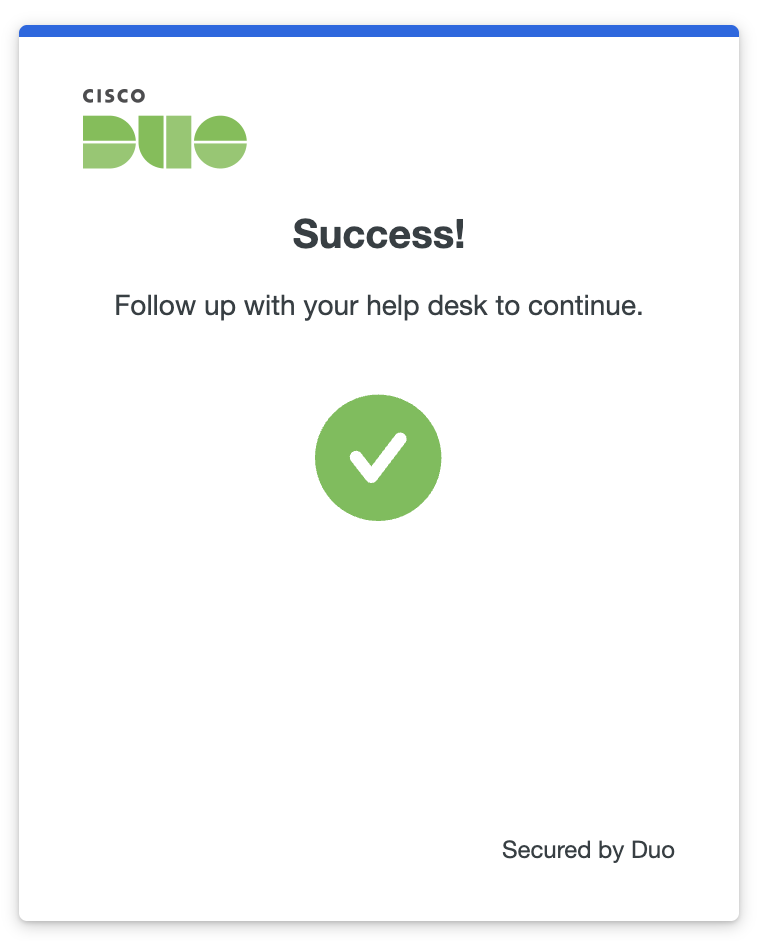
Tell your administrator when verification is complete.
Verify Your Identity with Duo Mobile
Duo Mobile identity verification requires Duo Mobile version 4.123 or later on iOS or Android.
-
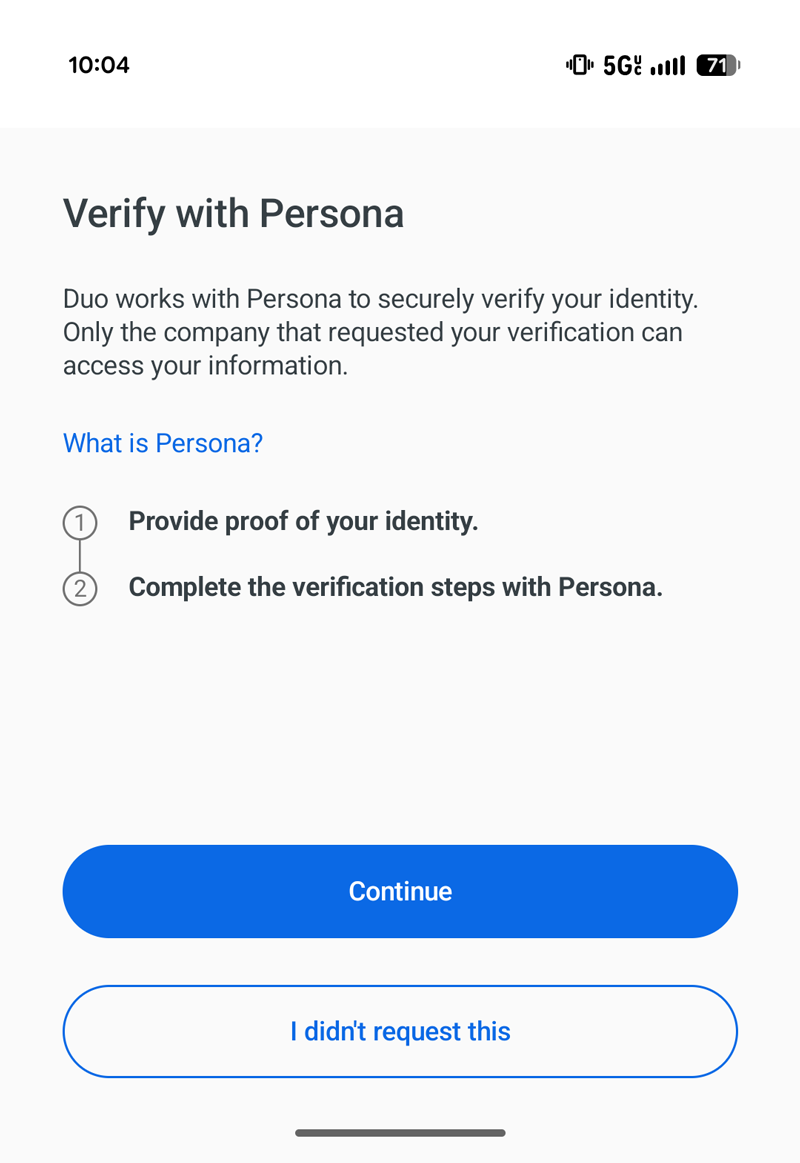
Your Duo administrator sends a verification request to your phone. You receive a notification in Duo Mobile.
-
Tap to open the notification. Tap to start identity verification or tap I didn't request this if you did not expect the request.
-
Follow the prompts in Duo Mobile to scan your government-issued ID.
-
Take a picture of yourself as instructed.
-
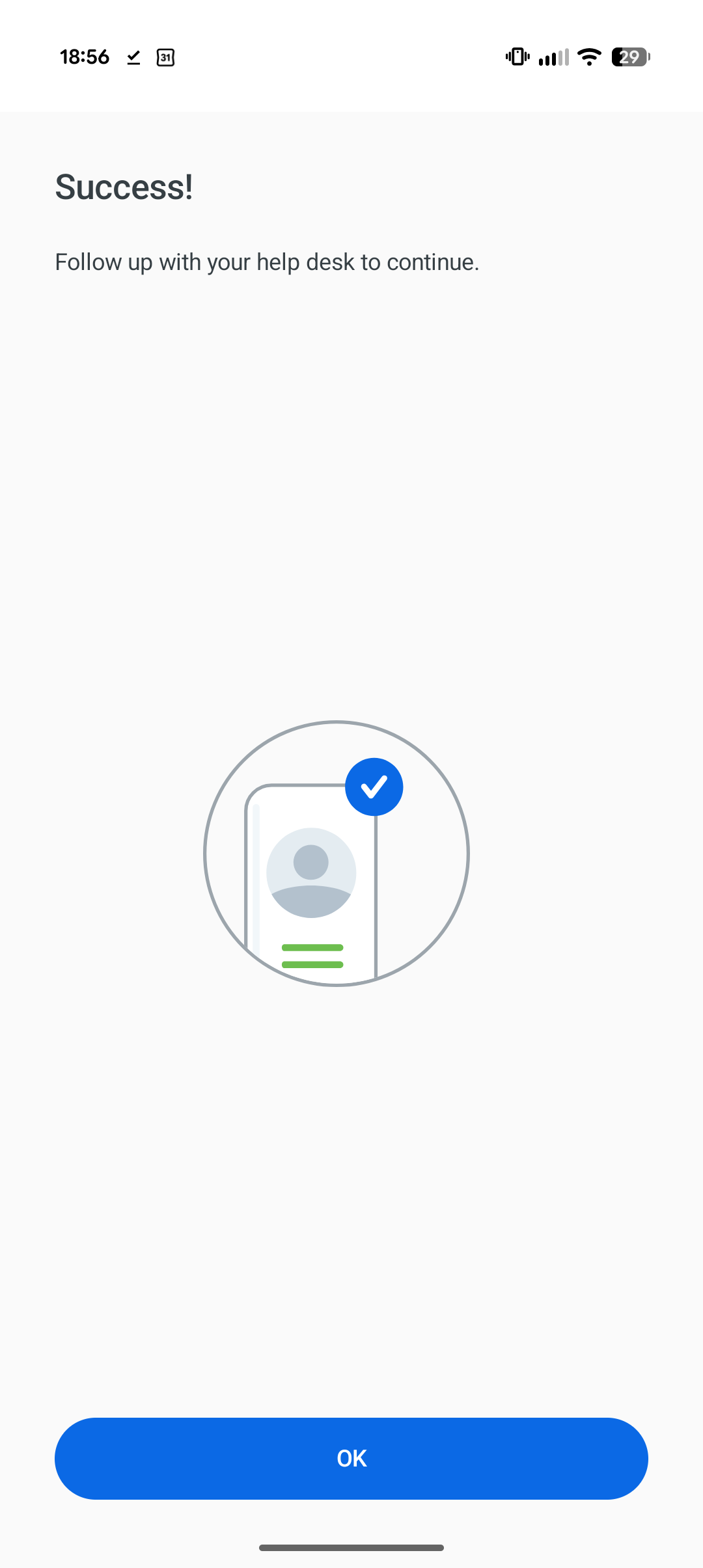
When verification is complete, Duo Mobile shows the result. Tell your administrator you are done.
If you cannot receive the Duo Mobile notification, ask your administrator to use the web browser verification method instead. For help with Duo Mobile notifications, see the troubleshooting guides for Android or iOS.
Verify Your Identity During Enrollment
Your organization may require you to verify your identity before you can enroll in Duo.
-
When you access the Duo enrollment page, you see a prompt to verify your identity first. Click Verify with Persona.
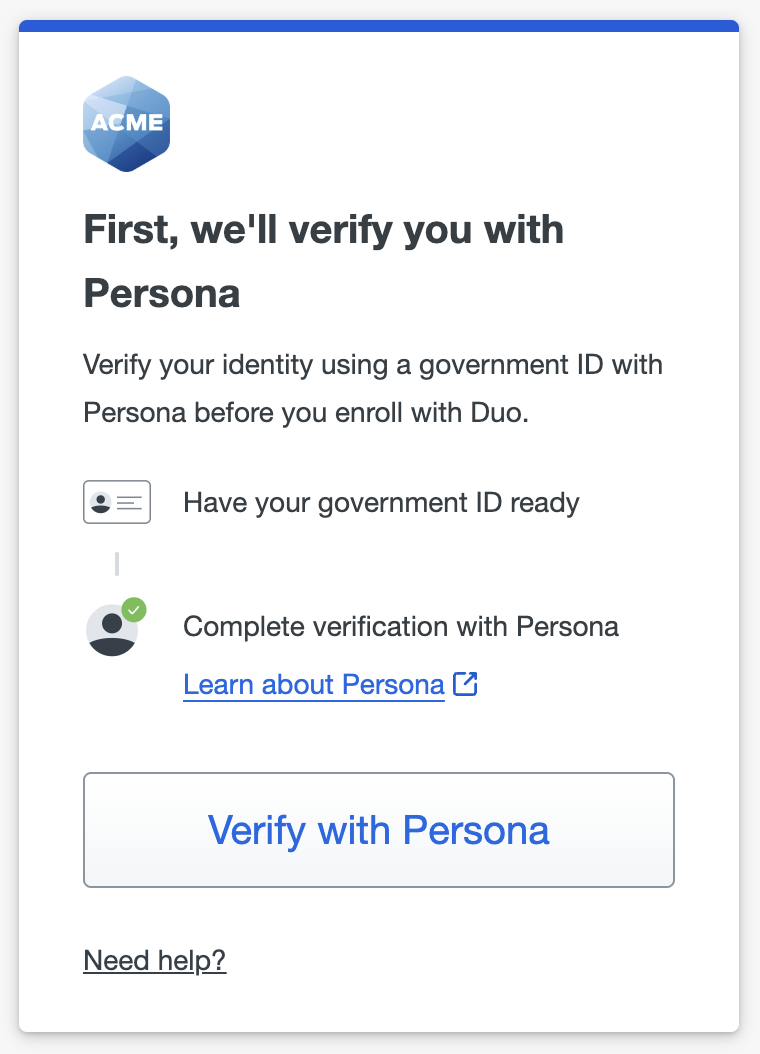
-
The Persona site opens in your browser. Click Begin verifying to start.
-
Follow the prompts to scan your government-issued ID.
If the device you are using does not have a camera, click Continue on another device at the Persona site. Scan the QR code shown with a phone or tablet that has a camera to finish from that device.
-
Take a picture of yourself as instructed.
-
After verification is complete, you return to Duo to continue enrollment.
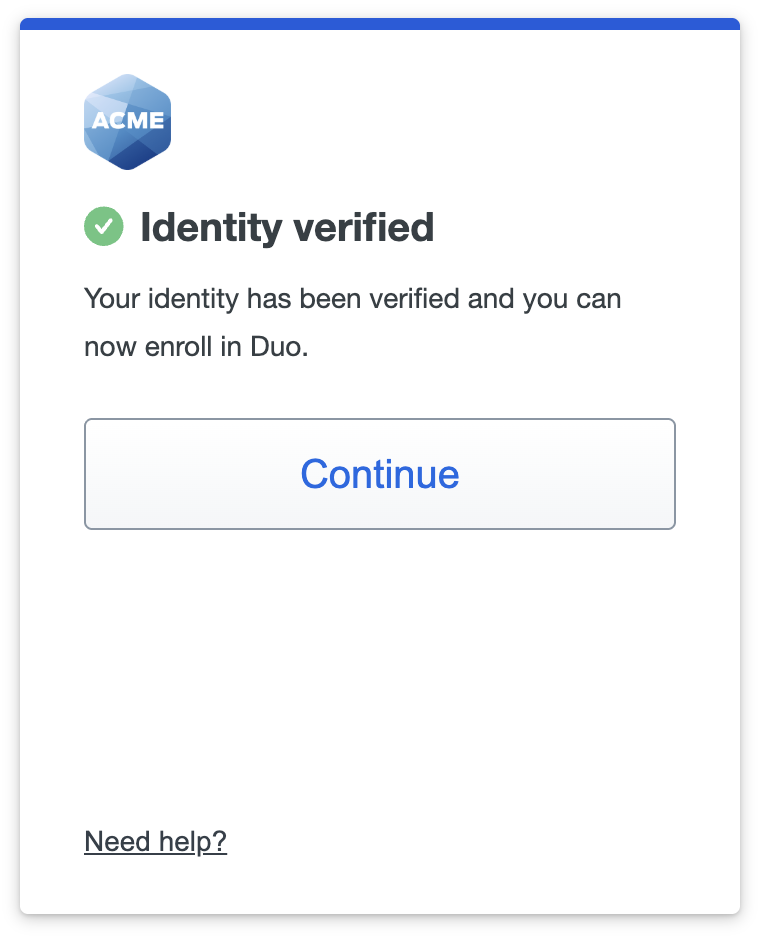
If you are unable to complete identity verification, contact your organization's IT help desk.